Agent Management
Monitor Pult Agent deployments and view agent status in the dashboard.
The Pult Dashboard provides a dedicated view for monitoring all Pult Agent deployments across your organization.
Accessing the Agent Overview
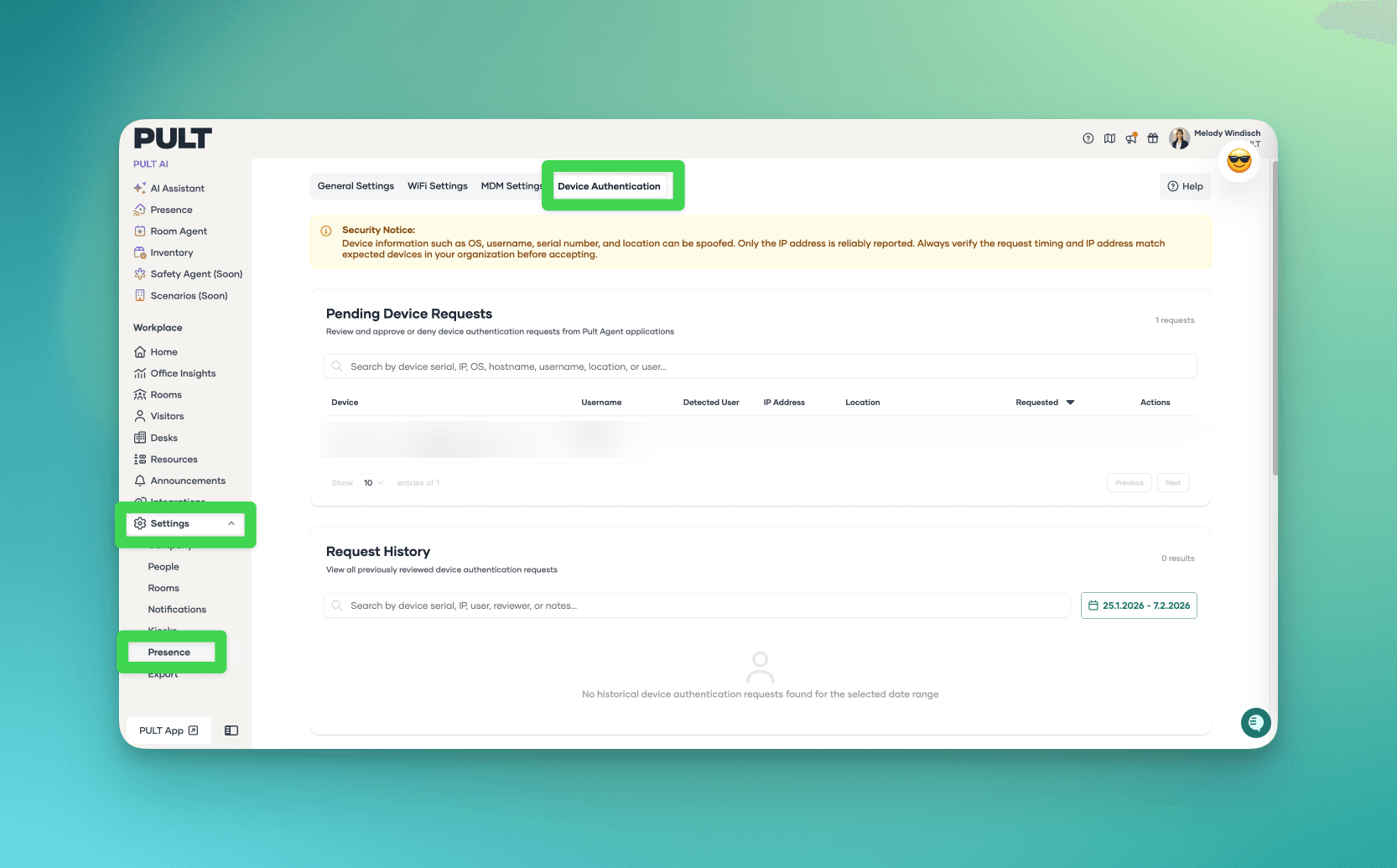
Navigate to Settings → Presence → Pult Agent in the Pult Dashboard.
Overview Metrics
At the top of the page, two key metrics are displayed:
- Users with agent installed -- Number of users who have at least one agent session.
- Active agents -- Number of agents currently active (sending beacons).
User Table
The table lists all organization users with their agent deployment status:
| Column | Description |
|---|---|
| User | Employee name, email, and team. |
| Agent Status | Current agent status (see below). |
| Agent Sessions | Click to view all active and past sessions, including agent version, OS, and connection details. |
| Device Auth Status | Whether the device was authenticated via bootstrapping or manual sign-in. |
Agent Status Indicators
| Status | Meaning |
|---|---|
| Active (green) | Agent is currently sending beacons. |
| Recently active (orange) | Agent was active within the last 20 minutes but isn't sending beacons right now. |
| Inactive (grey) | Agent hasn't been active for several hours or more. |
| Not installed | No agent session has been recorded for this user. |
Session Details
Click on a user's Agent Sessions to see detailed information about each session:
- Agent version -- Which version of the agent is installed.
- Operating system -- The device's OS and version.
- Status -- Whether the session is currently active.
- Last seen -- When the agent last sent a beacon.
- Last location / IP -- The most recently detected office location and source IP.
- Connected since -- When the agent session started.
This information is useful for:
- Verifying that the correct agent version is deployed across your fleet.
- Identifying devices that are offline or have stale installations.
- Troubleshooting presence detection issues for specific users.
Agent sessions show connection telemetry kept for troubleshooting -- not attendance data. If your organization prefers, this connection detail (IP, device, and countries) can be hidden from your workspace so it's accessible only to authorised Pult staff when needed for support. Contact Pult support to enable this. See Privacy & Data Handling.
Last updated on Jul 28, 2026, 3:09 PM