WiFi Inspector
Debug and verify WiFi Presence matching using the WiFi Inspector tool.
The WiFi Inspector is a debugging tool that helps administrators verify that WiFi Presence is working correctly. It lets you inspect MDM device data, live WiFi client activity, and see whether devices are being matched to users and locations.
The WiFi Inspector is a debugging view, separate from the presence sync. Its data and buttons affect only this page:
- Sync WiFi Activity fetches the currently connected clients from your WiFi integrations and shows them here. It does not start a presence sync and does not record presence.
- The matches shown here are not saved and do not count toward anyone's presence.
WiFi presence is recorded only by the regular periodic sync.
The WiFi Inspector works only with the WiFi integration. It cannot inspect Pult Agent-based presence detection. This is because the WiFi integration can pull data on demand, while the agent operates on a push-based schedule.
Accessing the WiFi Inspector
Navigate to Settings → Presence → WiFi Inspector in the Pult Dashboard.
Overview
The WiFi Inspector shows three key metrics at the top:
- MDM Devices -- Total number of devices synced from your MDM integrations.
- WiFi Clients -- Total number of currently connected WiFi clients.
- Matched -- Number of WiFi clients whose MAC address matches an MDM device.
You can also:
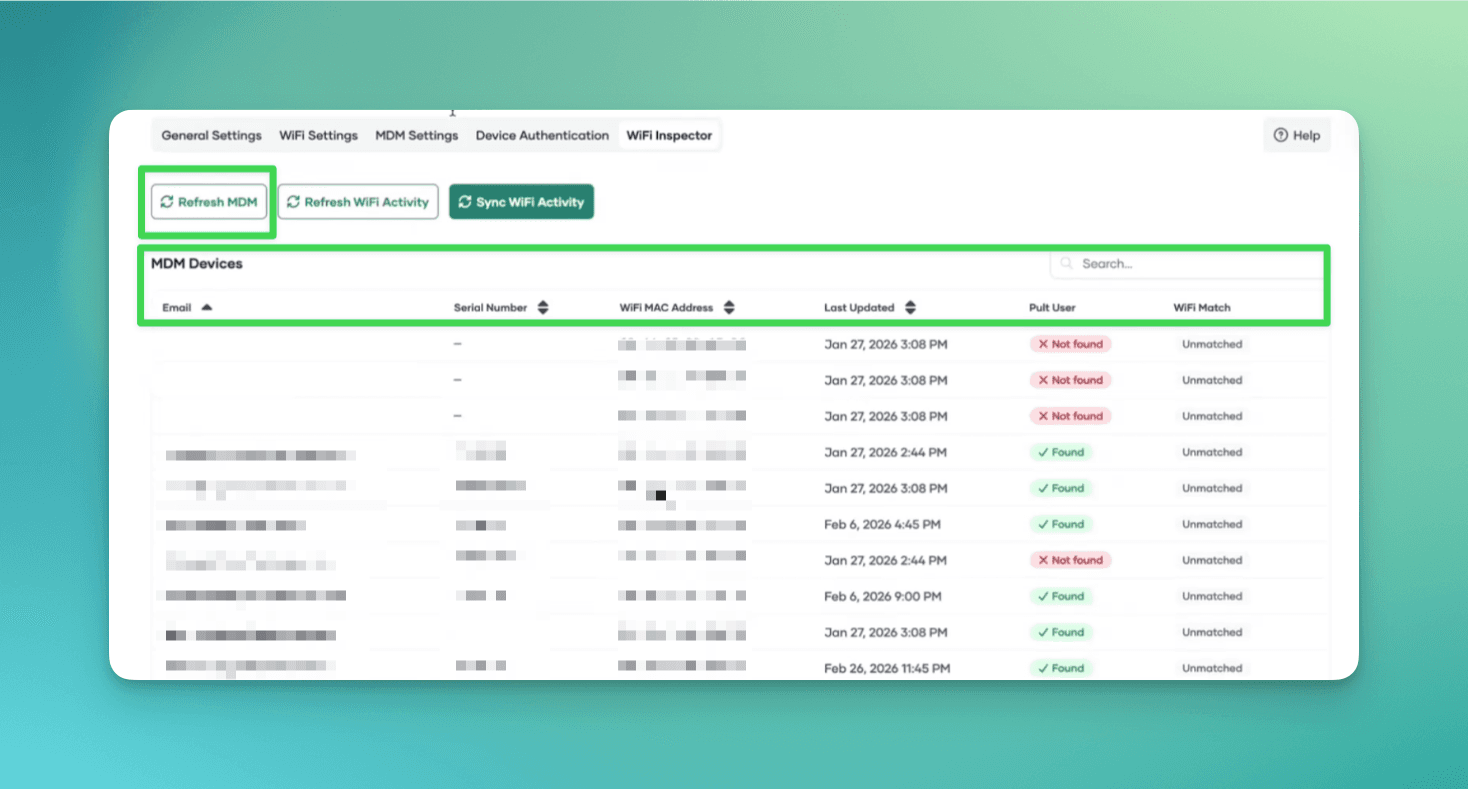
- Refresh MDM: reload the device list Pult has stored. It does not contact your MDM.
- Refresh WiFi Activity: reload the result of the last Sync WiFi Activity.
- Sync WiFi Activity: fetch the currently connected clients from your WiFi integrations. The result appears only on this page and is kept for a few hours.
MDM Devices View
The MDM Devices table shows all devices synced from your MDM integrations:
| Column | Description |
|---|---|
| The email address of the device's assigned user. | |
| Serial Number | The device serial number from the MDM. |
| WiFi MAC Address | The device's WiFi MAC address from the MDM. |
| Last Updated | When the device data was last synced. |
| Pult User | Whether the email resolves to an existing Pult user. |
| WiFi Match | Whether this device's MAC address was found in the current WiFi activity. Click to navigate to the matching WiFi entry. |
Use the search bar to find specific devices by email, serial number, or MAC address.
WiFi Client Activity View
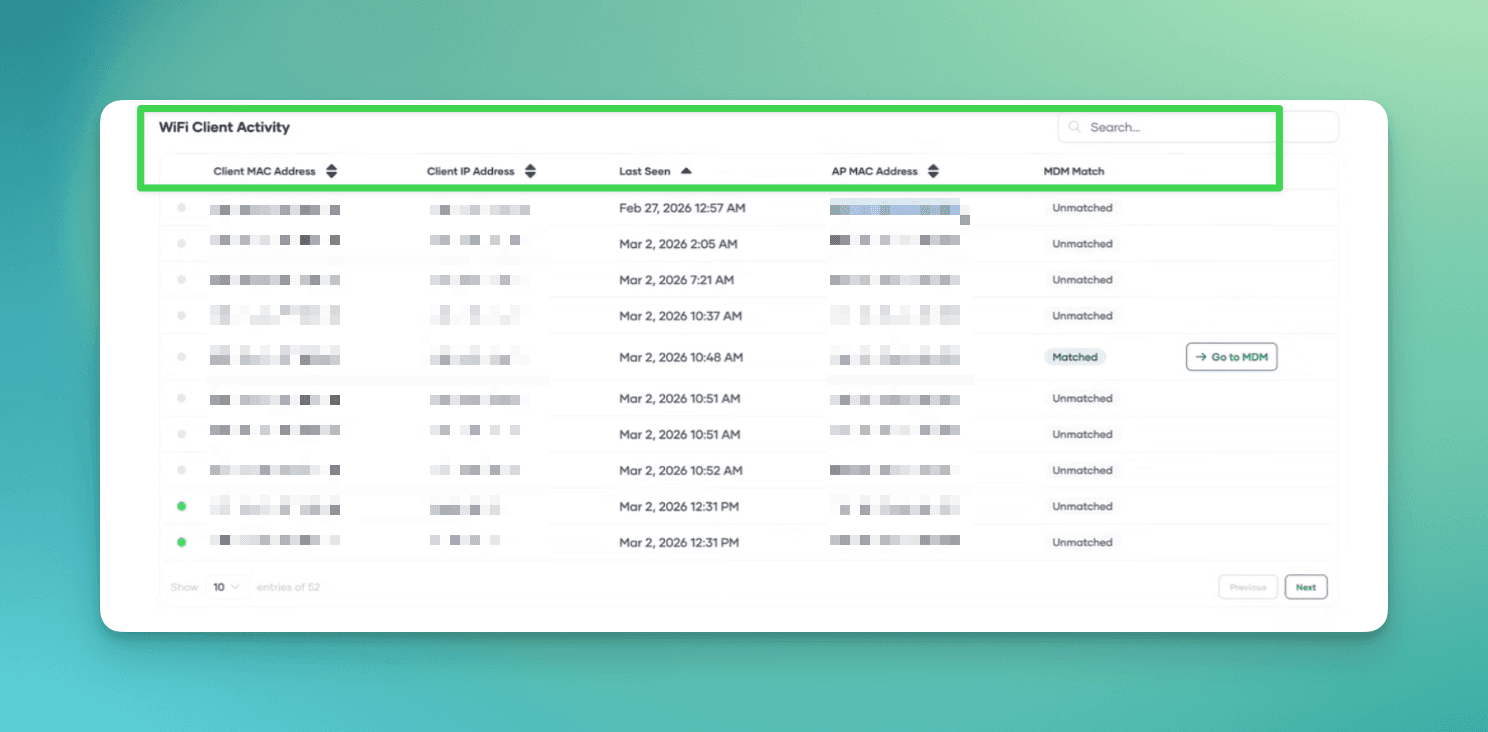
The WiFi Client Activity table shows the clients fetched by the last Sync WiFi Activity. This snapshot exists only for the inspector; the presence sync fetches its own data.
| Column | Description |
|---|---|
| Client MAC | The WiFi MAC address of the connected client. |
| Client IP | The client's IP address on the WiFi network. |
| Last Seen | When the client was last detected. A green dot indicates the client is currently active. |
| AP MAC | The MAC address of the access point the client is connected to. |
| MDM Match | Whether this client's MAC address matches an MDM device. Click to navigate to the matching MDM entry. |
How Device Matching Works
The regular presence sync runs these steps periodically. The inspector shows steps 1 to 3 so you can check them. It never runs steps 4 to 6, so it attributes no activity and records no presence.
- Load MDM devices -- The cached device inventory from all MDM integrations is loaded.
- Fetch WiFi activity -- Live WiFi client data is retrieved from all WiFi integrations.
- Match by MAC address -- Each WiFi client's MAC address is compared against MDM device MAC addresses.
- Associate Pult user -- If a matched MDM device is linked to a Pult user (via email), the WiFi activity is attributed to that user.
- Determine location -- Using the client's IP and the configured location mapping rules, Pult resolves the presence location.
- Record presence -- A presence event is created for the user at the resolved location.
Troubleshooting
User not matched
If a WiFi client shows no MDM match:
- MAC address randomization is the most common cause. Verify that the device's private/random WiFi address is disabled. The MAC address the WiFi controller sees must match the one registered in the MDM.
- Device not enrolled -- Check that the device is properly enrolled in your MDM system and has a WiFi MAC address recorded.
- MDM data stale: Refresh MDM only reloads the stored device list. A newly enrolled device appears after the next MDM sync.
User matched but no presence
If a user is matched (MDM match found) but no presence is recorded:
- No location mapping -- Verify that a location mapping rule exists that covers the client's IP subnet.
- Email mismatch -- The MDM device email must match a Pult user account (case-insensitive). Check the "Pult User" column in the MDM Devices view.
Checking a specific device
- Find the device's WiFi MAC address (from the MDM or the device itself).
- Search for it in both the MDM Devices and WiFi Client Activity views.
- If it appears in MDM but not in WiFi: the device may not be connected to WiFi, or MAC randomization is active.
- If it appears in WiFi but not in MDM: the device isn't in your MDM system. Consider importing it manually.
Last updated on Sep 29, 2026, 2:10 PM