Setup Guide
Step-by-step instructions for connecting Microsoft Intune to Pult Presence.
The Intune integration uses an OAuth admin consent flow -- no manual API key creation is needed. An administrator grants Pult read-only access to Intune device data through the Microsoft consent dialog.
Step 1: Add the Integration in Pult
- In the Pult Dashboard, go to Settings → Presence → MDM Settings.
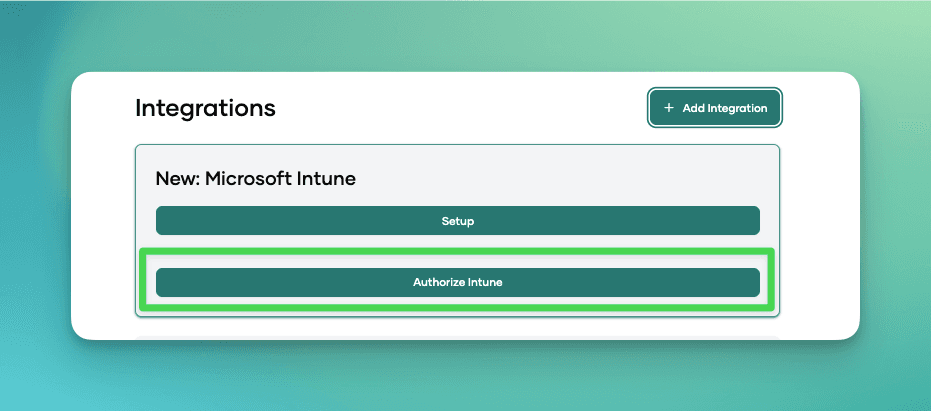
- Click Add Integration and select Microsoft Intune.
- Click Authorize Intune.
Step 2: Grant Admin Consent
You will be redirected to the Microsoft login page. Sign in with an account that has Global Administrator or Intune Administrator permissions on your Microsoft tenant.
Review the requested permissions -- Pult requests read-only access to Intune device information. Click Accept to grant consent.
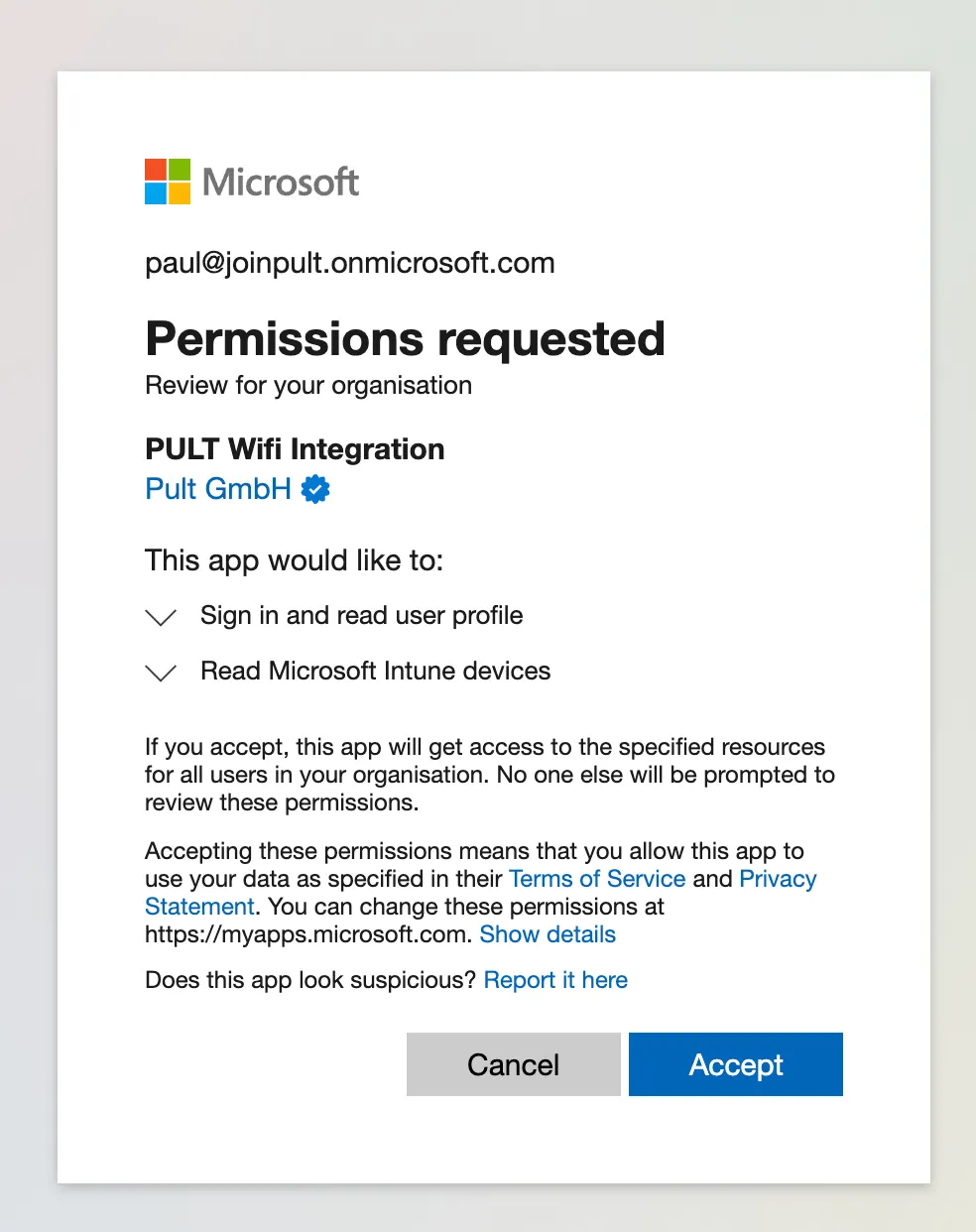
After accepting, you will be redirected back to the Pult Dashboard. The integration is now active.
Step 3: Verify
Back in the Pult Dashboard, the Intune integration should show a Connected status. Devices will be synced on the next periodic sync cycle.
You can verify that devices are appearing in the WiFi Inspector under the MDM Devices tab.
Last updated on May 19, 2026, 3:50 PM