Reports & Export
Export presence data as CSV and set up automated scheduled reports.
Pult Presence provides multiple ways to extract attendance data for further analysis and reporting.
CSV Export
Each section of the Presence Dashboard includes an Export button that generates a CSV file:
| Section | Export Contents |
|---|---|
| Usage Details | Per-user daily presence: name, email, first/last detected, duration, locations. Single day or date range. |
| Presence by Location | Per-location user counts per day over the selected date range. |
| Average Attendance | Per-user average attendance over the selected time range, with applied filters. |
CSV exports are generated instantly and downloaded to your browser.
Scheduled Reports
For recurring reports, use the Scheduled Reports feature powered by the Pult AI Assistant.
Setting Up a Scheduled Report
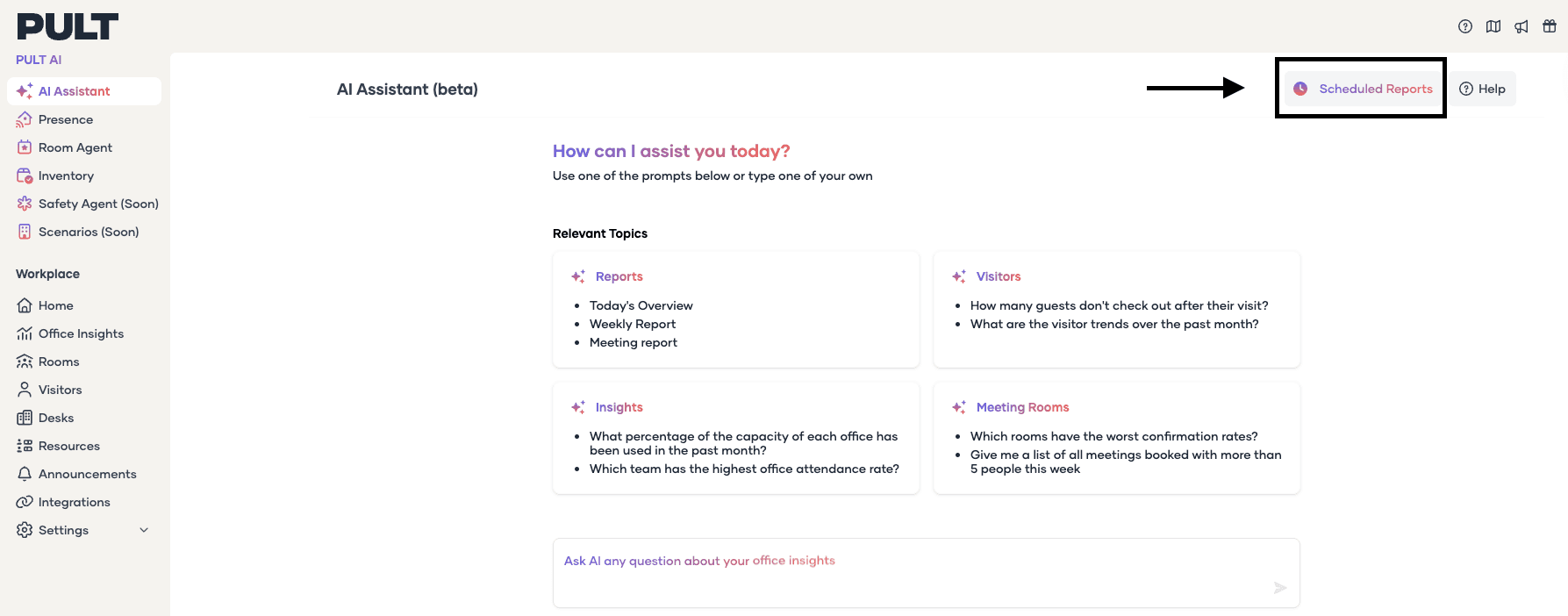
- Go to the AI Assistant in the Pult Dashboard.
- Click Scheduled Reports in the top-right corner.
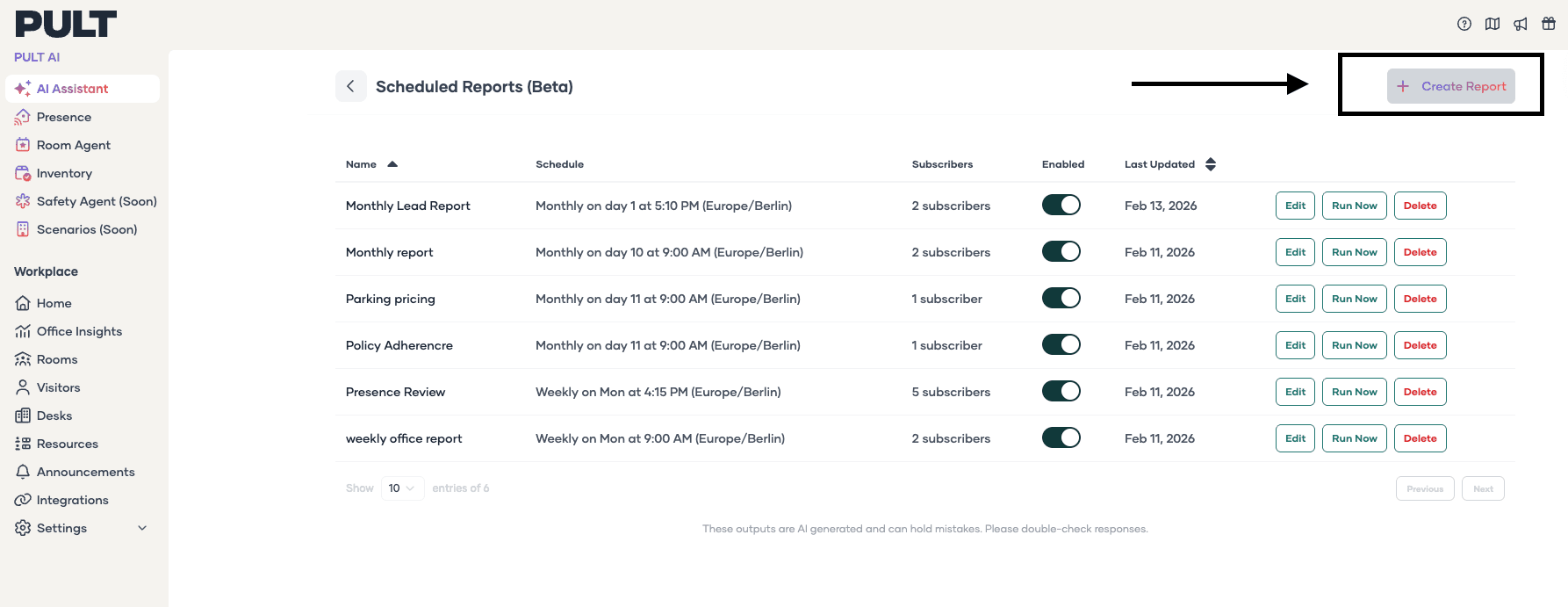
- Click Create Report.
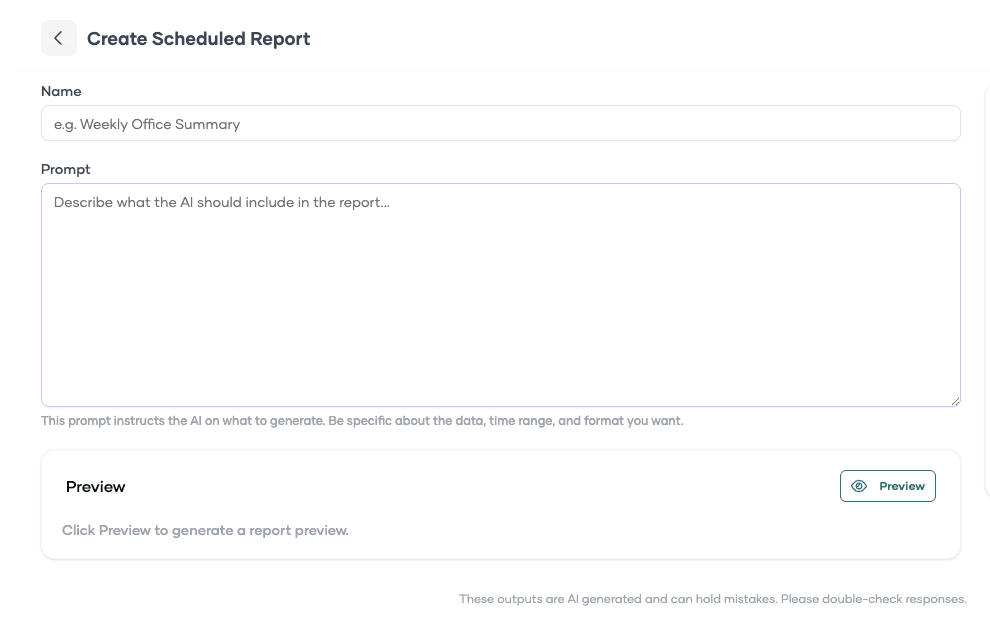
- Configure the schedule:
- Frequency -- How often the report runs (e.g., weekly, monthly).
- Day and time -- When the report is generated.
- Recipients -- Email addresses to receive the report.
- Write a prompt describing what the report should include.
- Click Schedule.
Sample Report Prompts
Monthly report:
Please generate a monthly report for all users, listing: email address, sum of days detected by Pult Presence from the first day of the past month until the last day of the past month, sum of days booked as business trip, home office, remote, sick, and vacation. Please also highlight all users that have 0 or 1 Presence Days.
Weekly report:
Please generate a report from last week for all users, listing: email address, sum of days detected by Pult Presence from Monday to Friday last week, sum of days booked as business trip, home office, remote, sick, and vacation. Please also highlight all users that have 0 or 1 Presence Days.
Customizing Reports
You can modify the prompt to tailor reports to your needs:
- Filter for employees with low presence.
- Cross-reference with holiday or leave data.
- Focus on specific teams or locations.
- Highlight policy compliance issues.
Report Delivery
Reports are sent via email to the configured recipients. To save reports in other formats:
- PDF: Open the email report in your browser and use the browser's print function to save as PDF.
- Excel: Copy the data table from the email and paste it into a spreadsheet application.
Managing Reports
You can edit, pause, or delete scheduled reports from the Scheduled Reports page. Use the Run Now button to test a report immediately before scheduling.
Last updated on May 19, 2026, 3:50 PM