Meeting Room Check-In
Automatically check in meeting room bookings based on attendee presence and release unused rooms.
The meeting room auto check-in automation uses Pult Presence data to verify whether meeting attendees are actually in the office. If attendance falls below a configured threshold, the meeting room is released for others.
How It Works
- A meeting room is booked with required attendees.
- At configurable times relative to the meeting start, Pult checks whether the required attendees are present in any Pult-tracked location.
- If the presence threshold is met (e.g., 50% of required attendees are detected), the meeting is automatically confirmed.
- If the threshold is not met by the auto-cancel deadline, the meeting room resource is removed from the event.
The meeting event itself is never deleted -- only the room resource is released. Attendees keep their calendar event; they just lose the room reservation.
Configuration Settings
Reminder Offsets
Define when reminders are sent to the meeting organizer, relative to the meeting start time.
Example: Setting -15 means a reminder is sent 15 minutes before the meeting starts, asking whether the room is still needed.
Reminders are delivered via Slack, Microsoft Teams, or Google Chat (depending on your integration). The organizer can manually confirm the room if needed.
Presence Auto-Confirm Offsets
Times (relative to meeting start) when Pult checks whether required attendees are present. You can set multiple offsets -- each functions as an independent check.
Example: Offsets of -10, 0, +10 mean Pult checks presence 10 minutes before, at the start, and 10 minutes after the meeting begins.
If the presence threshold is met at any of these check times, the meeting is confirmed.
Auto-Cancel Deadline Offset
The moment when Pult makes the final decision. If the meeting is still unconfirmed (neither manually confirmed nor presence threshold met) at this time, the room resource is removed.
- Offset 0 means the check happens at meeting start.
- All reminders and presence checks should occur before this deadline.
Minimum Meeting Duration
The minimum length a meeting must have for the automation to apply. Short meetings (e.g., 15-minute syncs) can be excluded if desired.
Presence Threshold
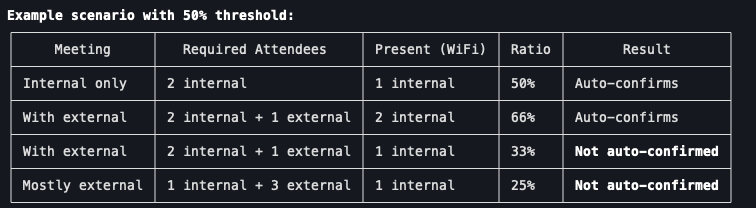
The percentage of required attendees who must be detected as present for the meeting to be automatically confirmed.
Example: With a threshold of 50% and 4 required attendees, at least 2 must be detected as present at any check time.
Example Scenario
- Meeting: 4:00 PM, 3 required attendees, conference room booked.
- Settings: Reminder at -60min, presence checks at -10, 0, +10, auto-cancel at +15, threshold 50%.
Timeline:
- 3:00 PM -- Organizer receives a reminder asking to confirm the room.
- 3:50 PM -- Pult checks presence. 1 of 3 attendees is present (33%) -- below 50%. No action yet.
- 4:00 PM -- Pult checks again. 2 of 3 are present (67%) -- above 50%. Meeting is auto-confirmed.
- If at 4:15 PM the threshold was still not met and no one confirmed manually, the room would be released.
Manual Confirmation
The meeting organizer can always manually confirm the room via the reminder notification (Slack/Teams/Google Chat), overriding the presence check. This ensures rooms aren't released when attendees are running late or joining from another location.
Last updated on May 19, 2026, 3:50 PM