Booking Confirmation
Automatically confirm desk bookings when Pult Presence detects the employee in the office.
When an employee is detected in the office via Pult Presence and has a desk booking for that day, the booking can be automatically confirmed -- no manual action required from the employee.
How It Works
- After the configured trigger time, Pult checks which users have unconfirmed desk bookings for today.
- For each user with an unconfirmed booking, Pult checks whether they have active presence at a location linked to the booking's office.
- If presence is confirmed, the booking is automatically marked as confirmed.
- The user receives a notification that their booking has been confirmed.
Configuration
Navigate to Settings → Presence → General Settings → Automation Settings.
| Setting | Description |
|---|---|
| Confirm active user's bookings | Set the time of day when the automation begins checking. Before this time, no automatic confirmations occur. |
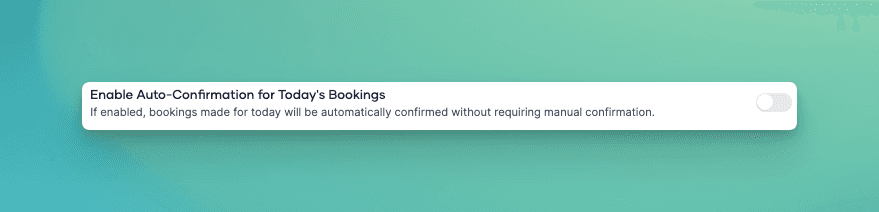
Presence Location to Office Link
For this automation to work, the presence location where the user is detected must be linked to the office where the booking exists. This link is configured in the Pult Workplace office settings.
Example: If "Hamburg HQ" is a presence location and "Hamburg Office" is a Pult Workplace office, linking them means that presence detected at "Hamburg HQ" can confirm bookings at "Hamburg Office".
Interaction with Booking Confirmation Deadlines
This automation works alongside the broader booking confirmation system in Pult Workplace:
- Deadlines define when unconfirmed bookings are deleted.
- Presence-based confirmation runs periodically and can confirm bookings before the deadline is reached.
- Grace period (recommended: 15--20 minutes) prevents bookings from being deleted too quickly when presence detection hasn't run yet.
Presence checks run at regular intervals (approximately every 15 minutes). Setting the trigger time well before your first booking confirmation deadline ensures presence has time to confirm bookings.
Per-Office Configuration
Booking confirmation can be configured per office. You can choose which offices require confirmation and which should have presence-based auto-confirmation. This is configured in Settings → Notifications → Booking Confirmations → Booking confirmation for specific offices.
Last updated on May 19, 2026, 3:50 PM