Setup Guide
Step-by-step instructions for connecting Mosyle Business to Pult Presence.
You need to create a service account and an API integration in Mosyle, then enter the credentials into the Pult Dashboard.
Credentials you'll collect along the way:
| Credential | Source |
|---|---|
| Client Access Token | Generated when creating the API Integration |
| Service Account Email | The email of the Mosyle service account |
| Service Account Password | The password of the Mosyle service account |
Step 1: Create a Service Account
Create a dedicated Mosyle account for Pult to use. We recommend restricting the account's permissions to the minimum needed -- Pult only requires read-only access to device information.
Save the account's email and password -- you'll need them for the Pult configuration.
Step 2: Create an API Integration
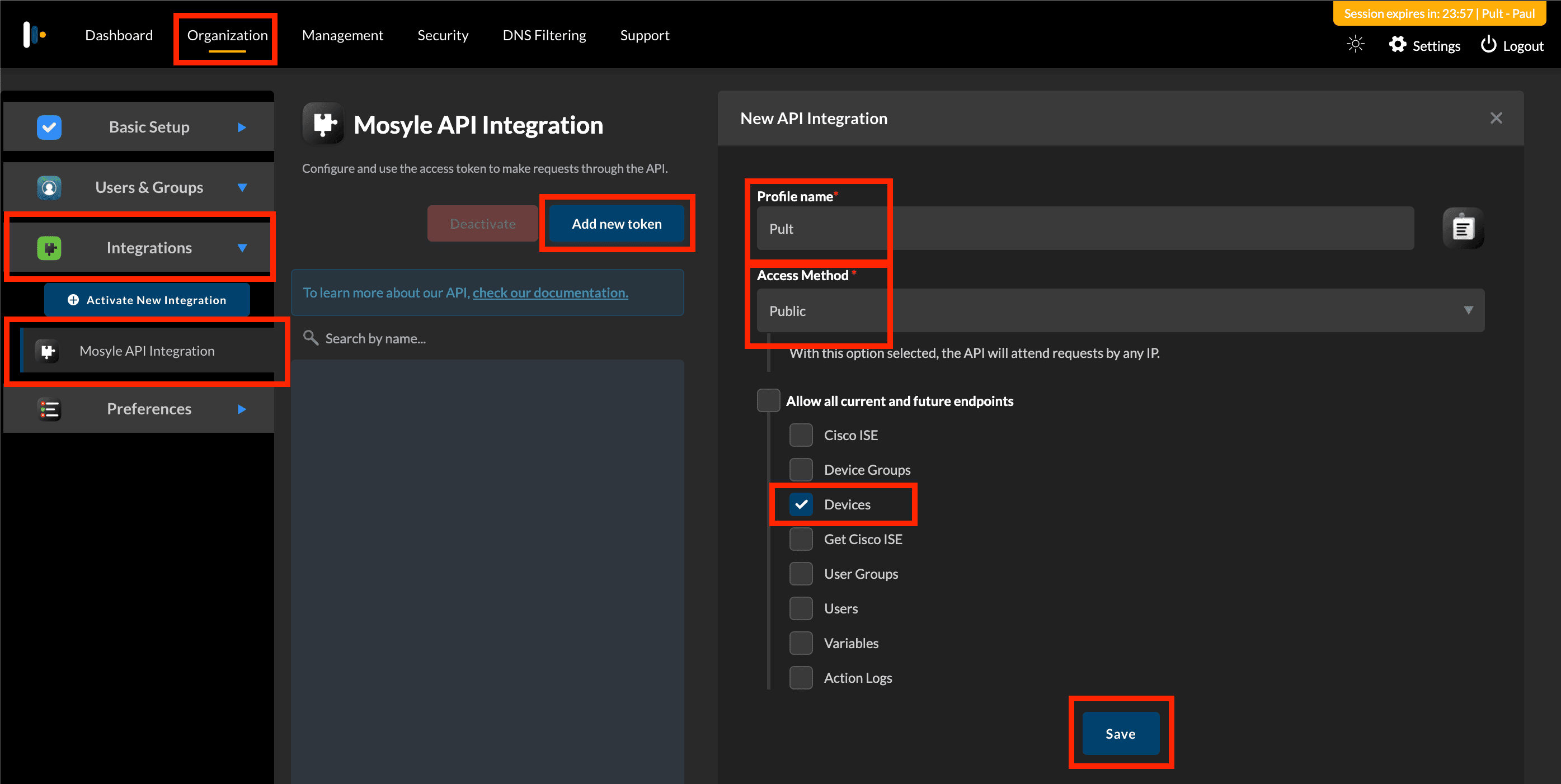
Go to Organization → Integrations → Mosyle API Integration and click Add new token.
Fill in the form:
- Profile name: e.g., "Pult"
- Access Method: Public
- Allowed Endpoints: check only Devices
Click Save.
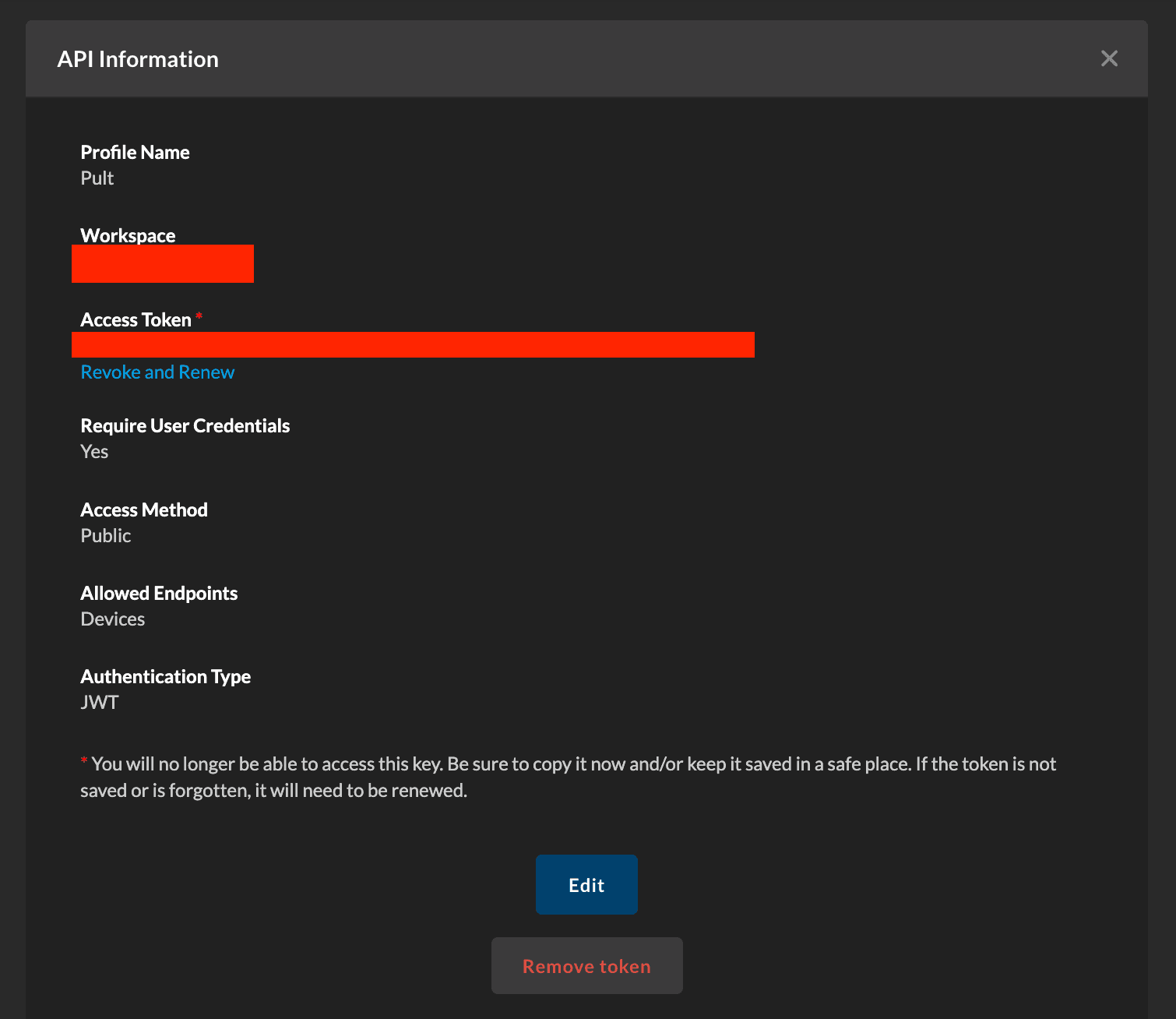
Copy the Access Token immediately. The token will not be shown again after closing this dialog.
Step 3: Configure in Pult
In the Pult Dashboard, go to Settings → Presence → MDM Settings → Add Integration → Mosyle and fill in all three fields:
- Client Access Token -- from Step 2
- Service Account Email and Service Account Password -- from Step 1
Pult validates the credentials on save. Devices will be synced on the next periodic sync cycle.

Last updated on May 19, 2026, 3:50 PM