Setup Guide
Step-by-step instructions for connecting JumpCloud to Pult Presence.
You need to create a service account with a client secret in the JumpCloud Admin Portal, then enter the credentials into the Pult Dashboard.
Credentials you'll collect along the way:
| Credential | Source |
|---|---|
| Client ID | Generated when activating the service account's client secret |
| Client Secret | Generated when activating the service account's client secret (shown only once) |
| Region | Where your JumpCloud organization is hosted: console.jumpcloud.com (Global) or console.eu.jumpcloud.com (EU) |
Step 1: Create a Service Account
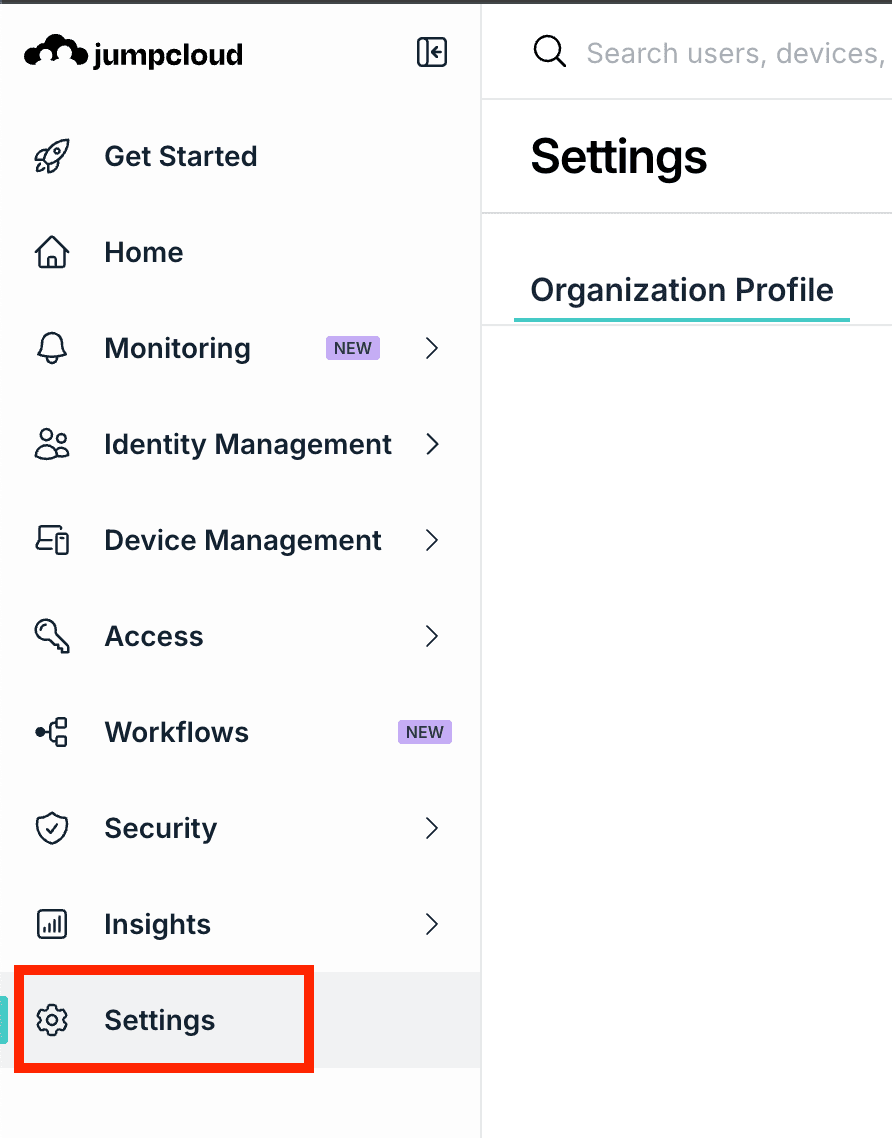
- In the JumpCloud Admin Portal, go to Settings in the sidebar.
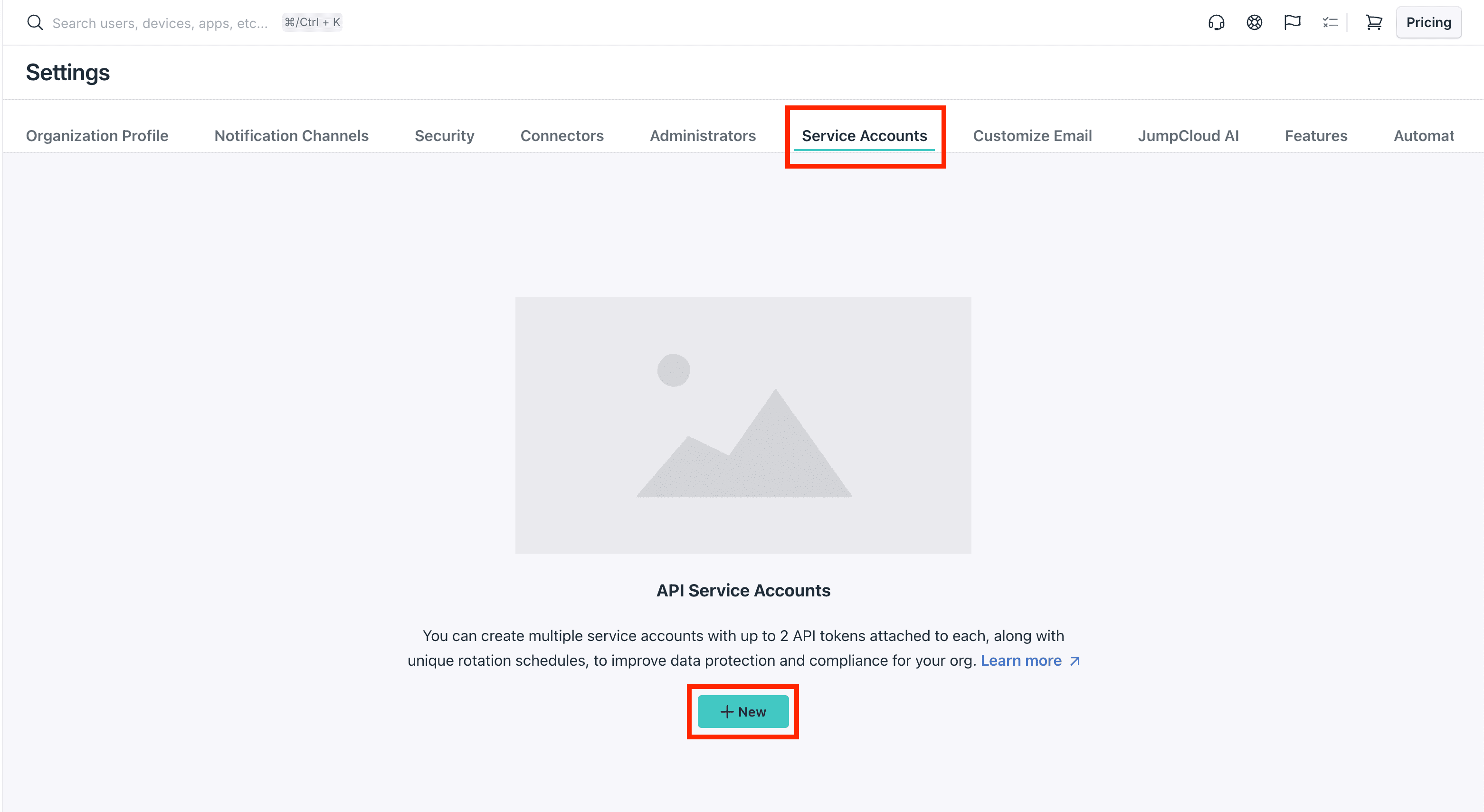
- Open the Service Accounts tab and click + New.
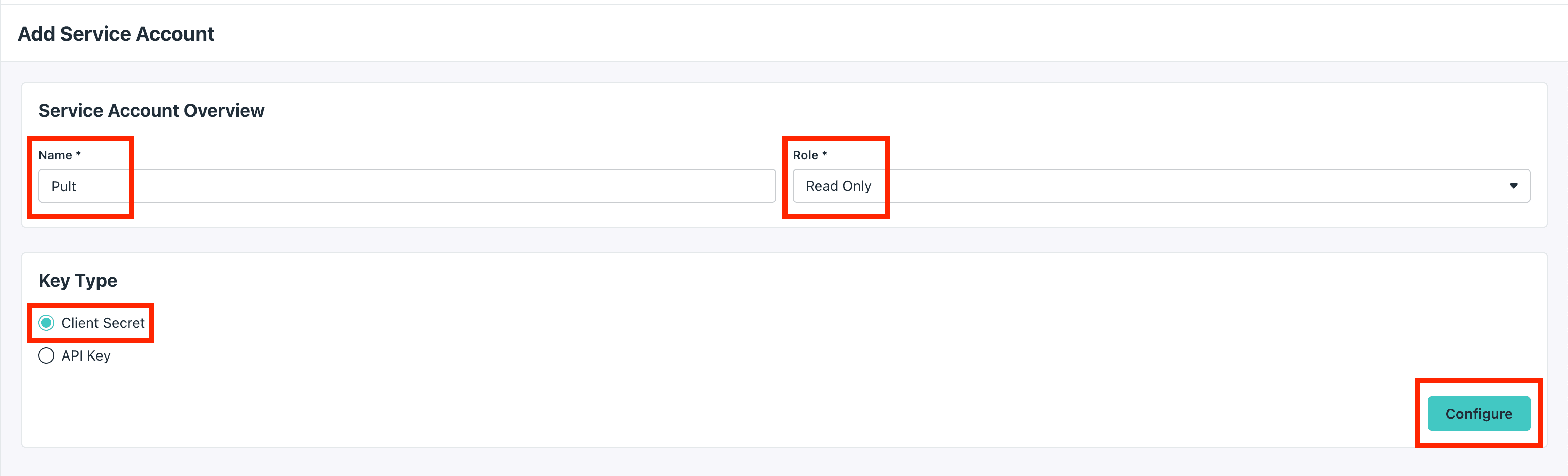
- Fill in the form:
- Name: e.g., "Pult"
- Role: Read Only
- Key Type: Client Secret
- Click Configure.
Step 2: Generate the Client Secret
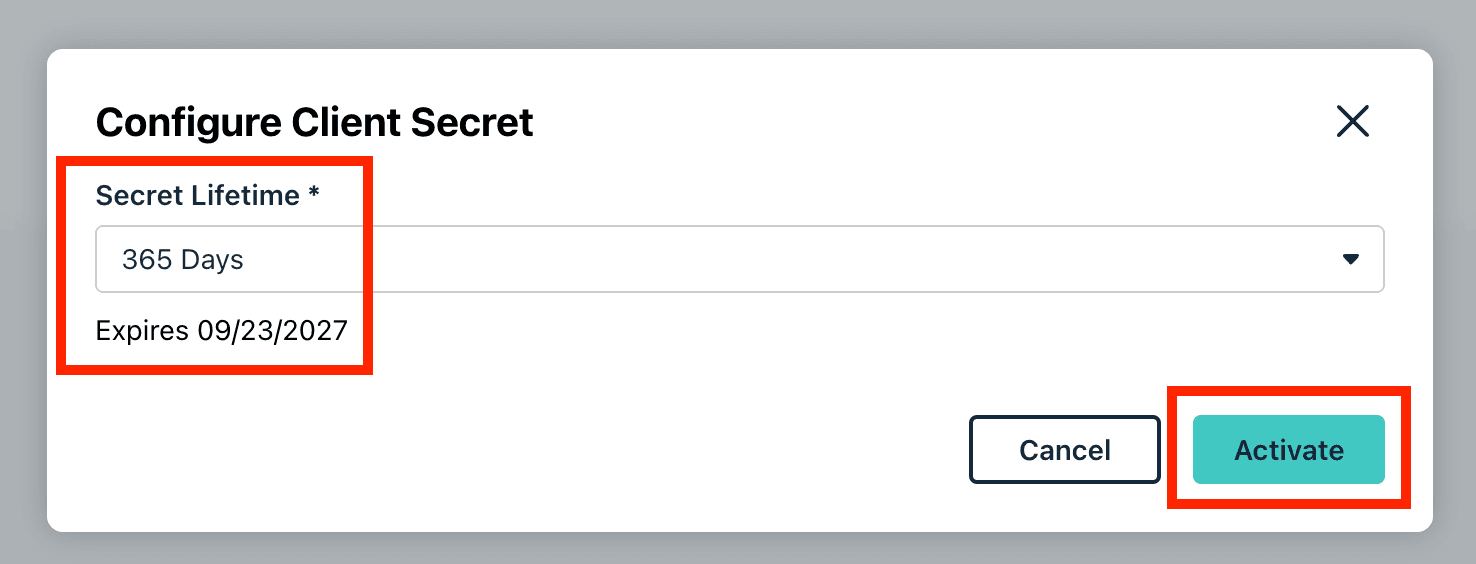
- In the Configure Client Secret dialog, choose a Secret Lifetime (e.g., 365 days).
- Click Activate.
- Copy the Client ID and Client Secret immediately. The Client Secret is only fully visible at the time of generation.
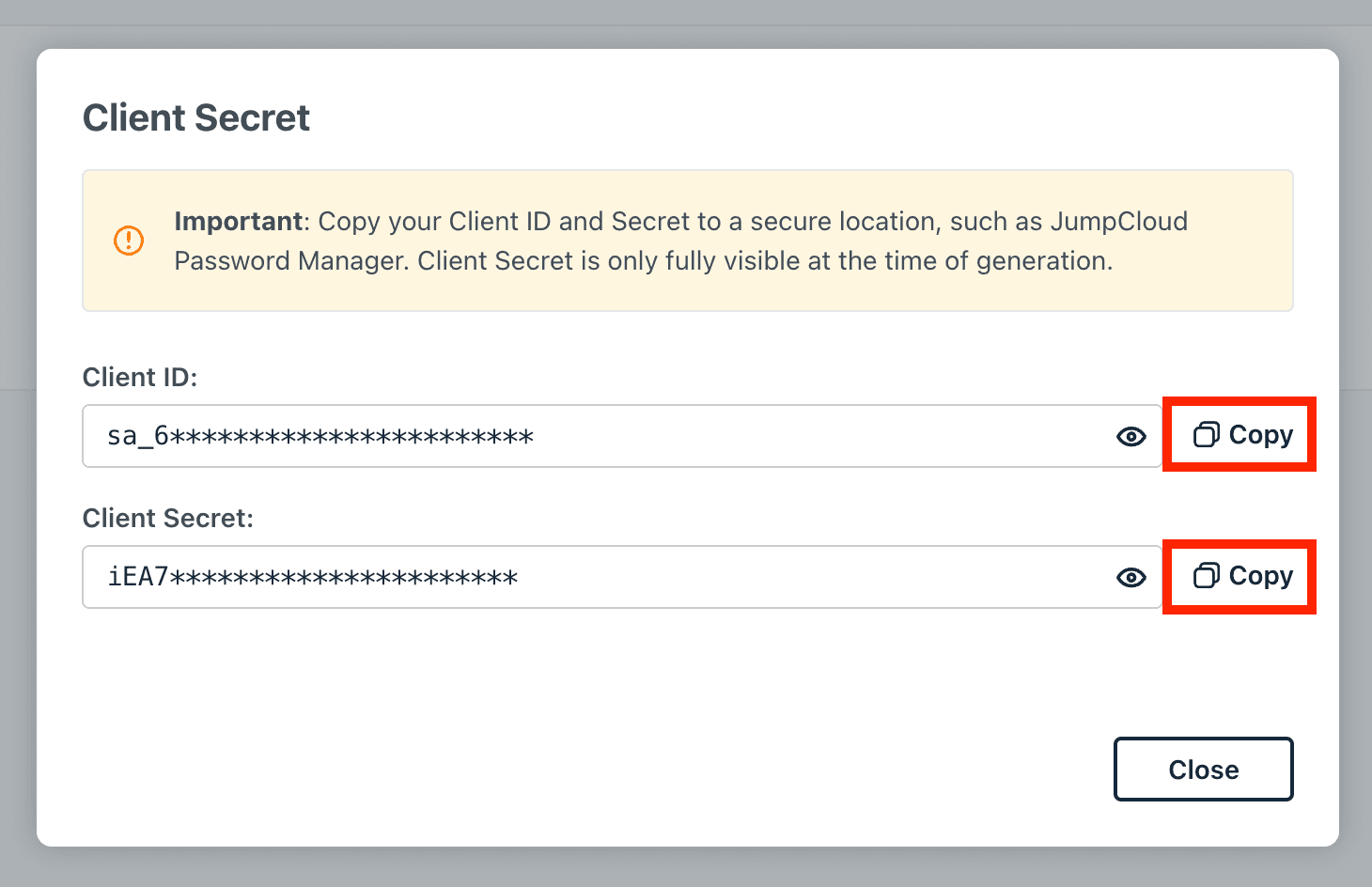
The Client Secret expires at the end of the chosen lifetime. Before it expires, generate a new secret in JumpCloud and update the integration in Pult, otherwise the sync stops working.
Step 3: Enable System Insights
Pult reads WiFi MAC addresses from JumpCloud System Insights. In the JumpCloud Admin Portal, go to Device Management → Devices, open a device (or select several), and enable System Insights for every device that should be detected via WiFi Presence.
Devices without System Insights are still synced and work for Device Authentication auto-matching, but they cannot be matched to WiFi activity.
Step 4: Configure in Pult
- In the Pult Dashboard, go to Settings → Presence → MDM Settings.
- Click Add Integration and select JumpCloud.
- Fill in the fields:
- Client ID: from Step 2
- Client Secret: from Step 2
- Region: Global if you sign in at
console.jumpcloud.com, EU if you sign in atconsole.eu.jumpcloud.com
- Click Save.
Pult validates the credentials on save. Devices will be synced on the next periodic sync cycle.
Pult never displays a saved Client Secret. Whenever you update the integration later, re-enter the Client Secret to save your changes.
Last updated on Sep 23, 2026, 6:04 PM