MDM IntegrationsJamf Pro
Setup Guide
Step-by-step instructions for connecting Jamf Pro to Pult Presence.
You need to create an API role and API client in Jamf, then enter the credentials into the Pult Dashboard.
Credentials you'll collect along the way:
| Credential | Source |
|---|---|
| Jamf Tenant Domain | Your Jamf instance URL (e.g., company.jamfcloud.com) |
| Client ID | Generated when creating the API Client |
| Client Secret | Generated when creating the API Client |
Step 1: Create an API Role
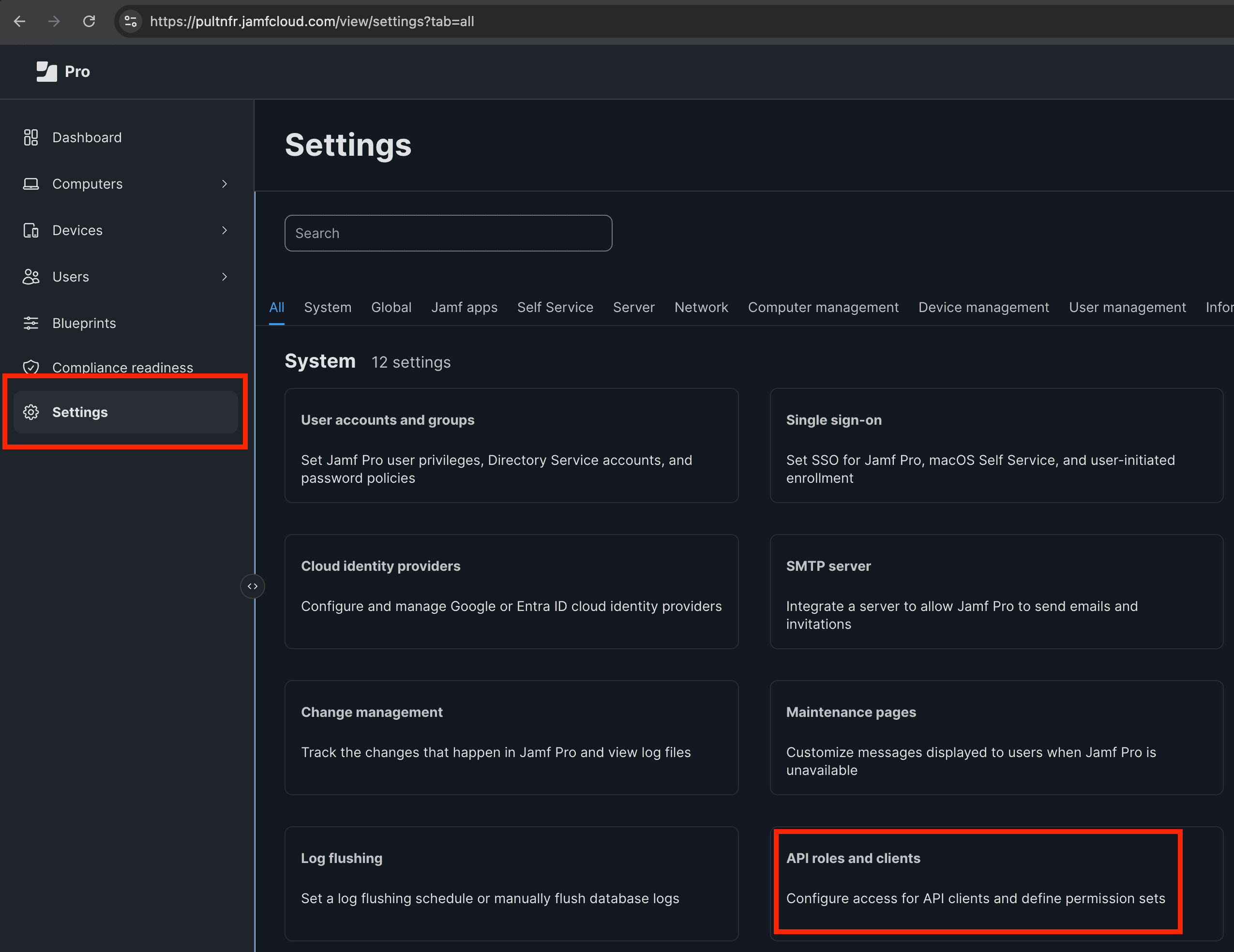
- In Jamf Pro, go to Settings → API roles and clients.
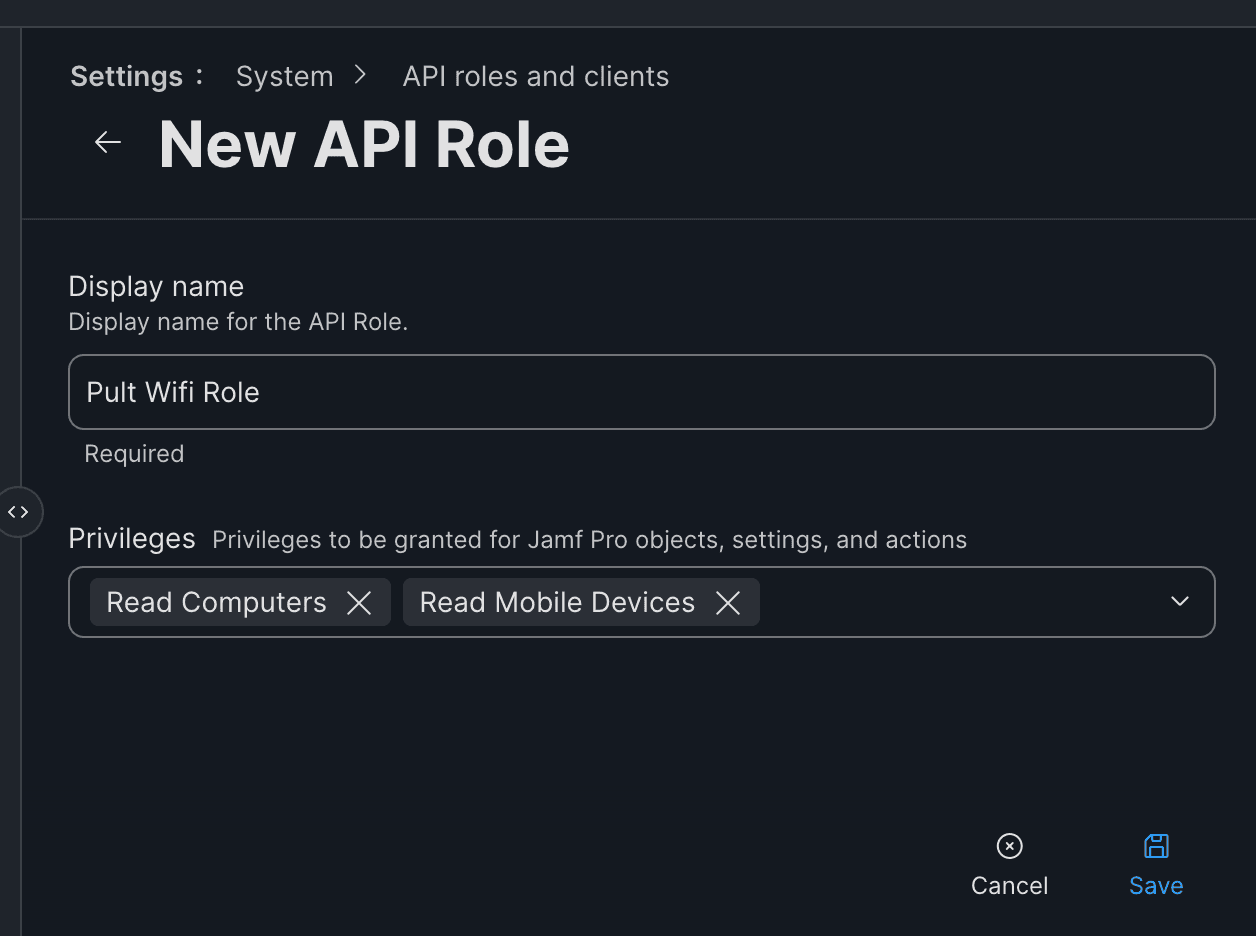
- Create a new API Role with the following settings:
- Display name: e.g., "Pult Role"
- Privileges: Enable only
Read ComputersandRead Mobile Devices
- Click Save.
Step 2: Create an API Client
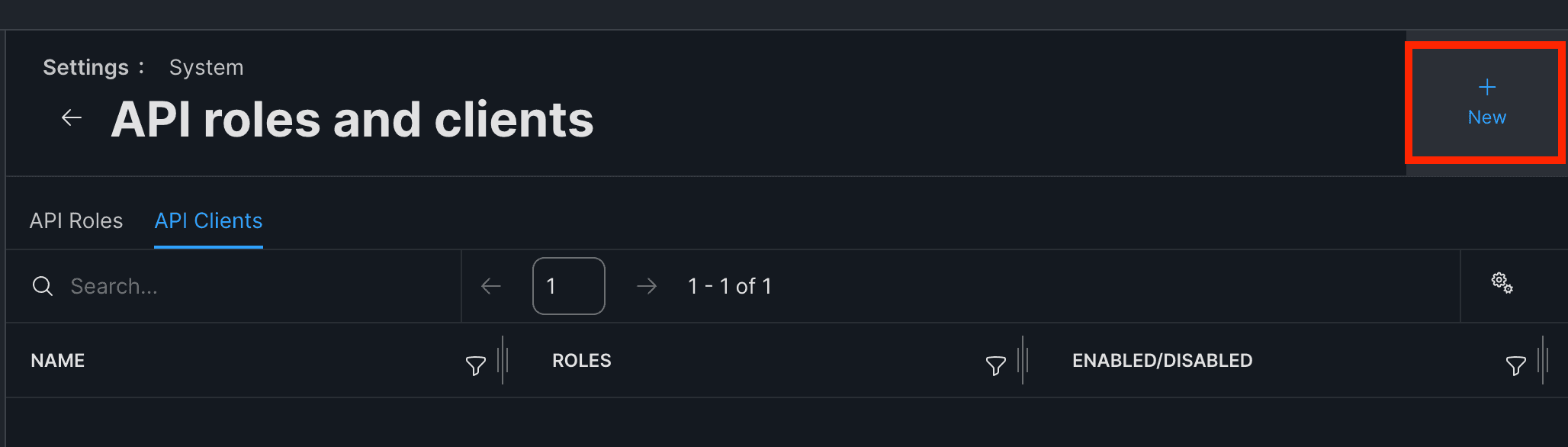
- Still in API roles and clients, create a new API Client:
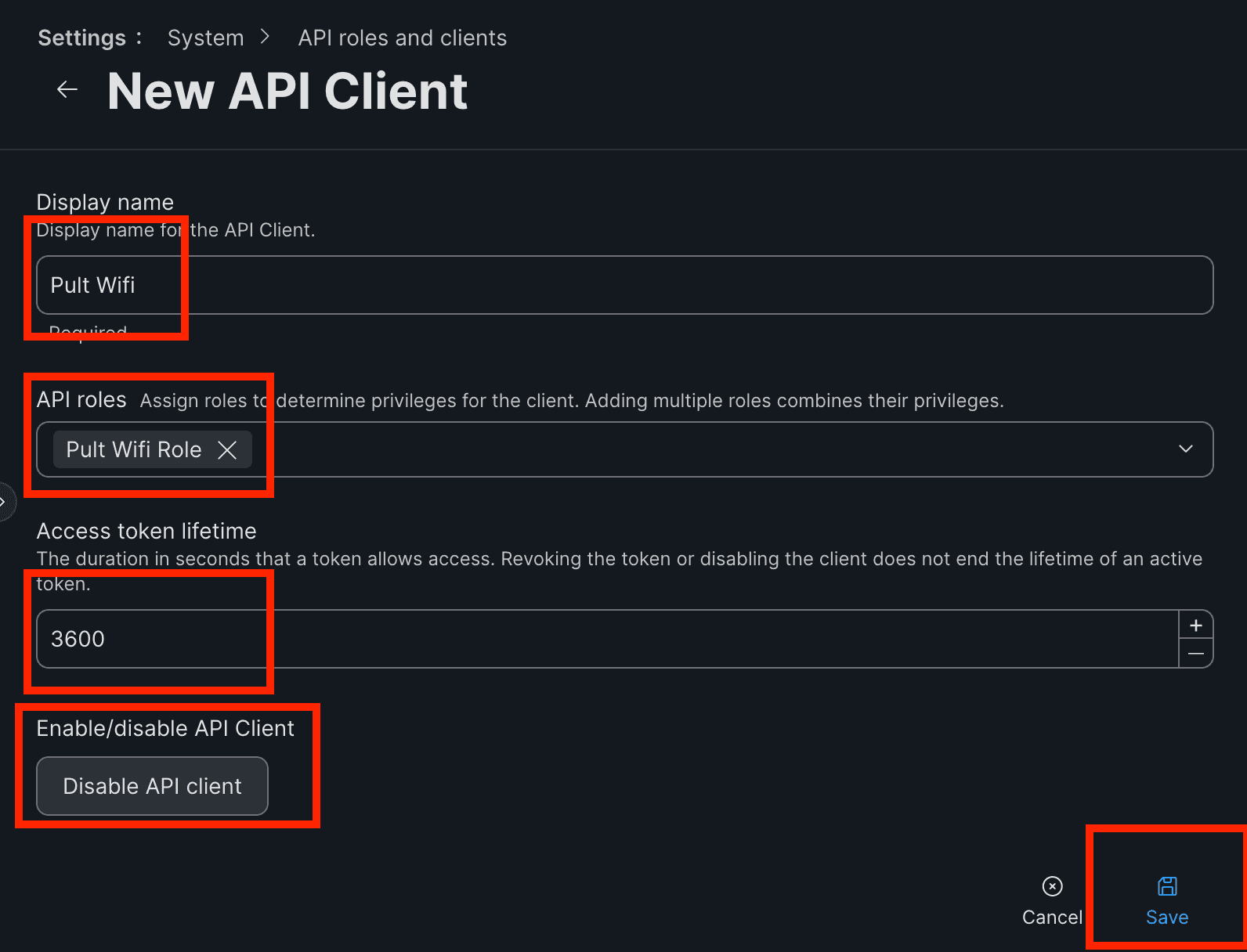
- Display name: e.g., "Pult"
- API Role: Select the role created in Step 1
- Access token lifetime: 3600
- Enable API Client: Enabled
- Click Save.
- Click Generate Client Secret. Copy the Client ID and Client Secret immediately -- the secret will not be shown again.

Step 3: Configure in Pult
- In the Pult Dashboard, go to Settings → Presence → MDM Settings.
- Click Add Integration and select Jamf.
- Fill in the fields:
- Jamf Tenant Domain -- e.g.,
company.jamfcloud.com - Client ID -- from Step 2
- Client Secret -- from Step 2
- Jamf Tenant Domain -- e.g.,
- Click Save.
Pult validates the credentials on save. Devices will be synced on the next periodic sync cycle.
Disabling WiFi MAC Address Randomization
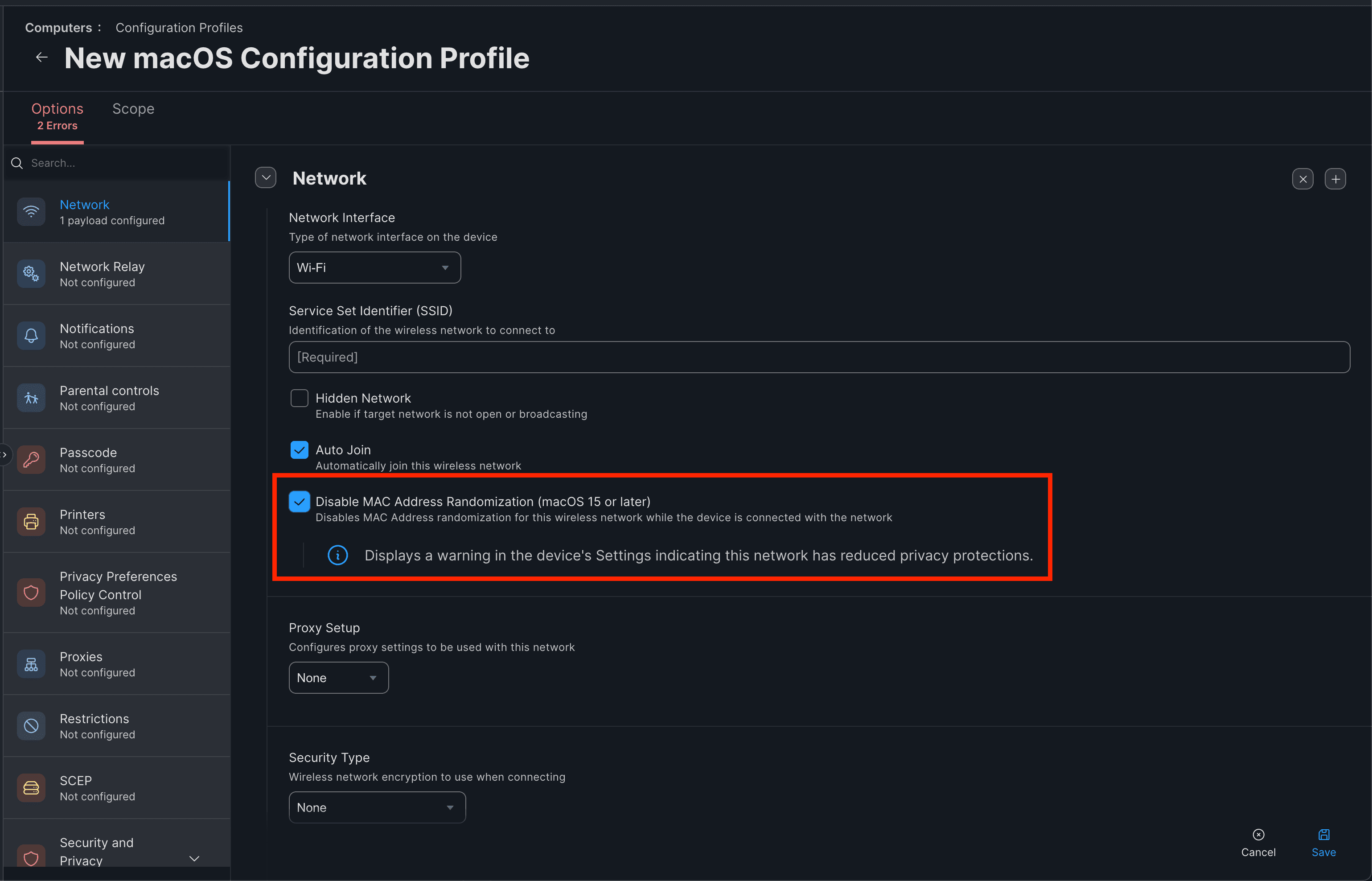
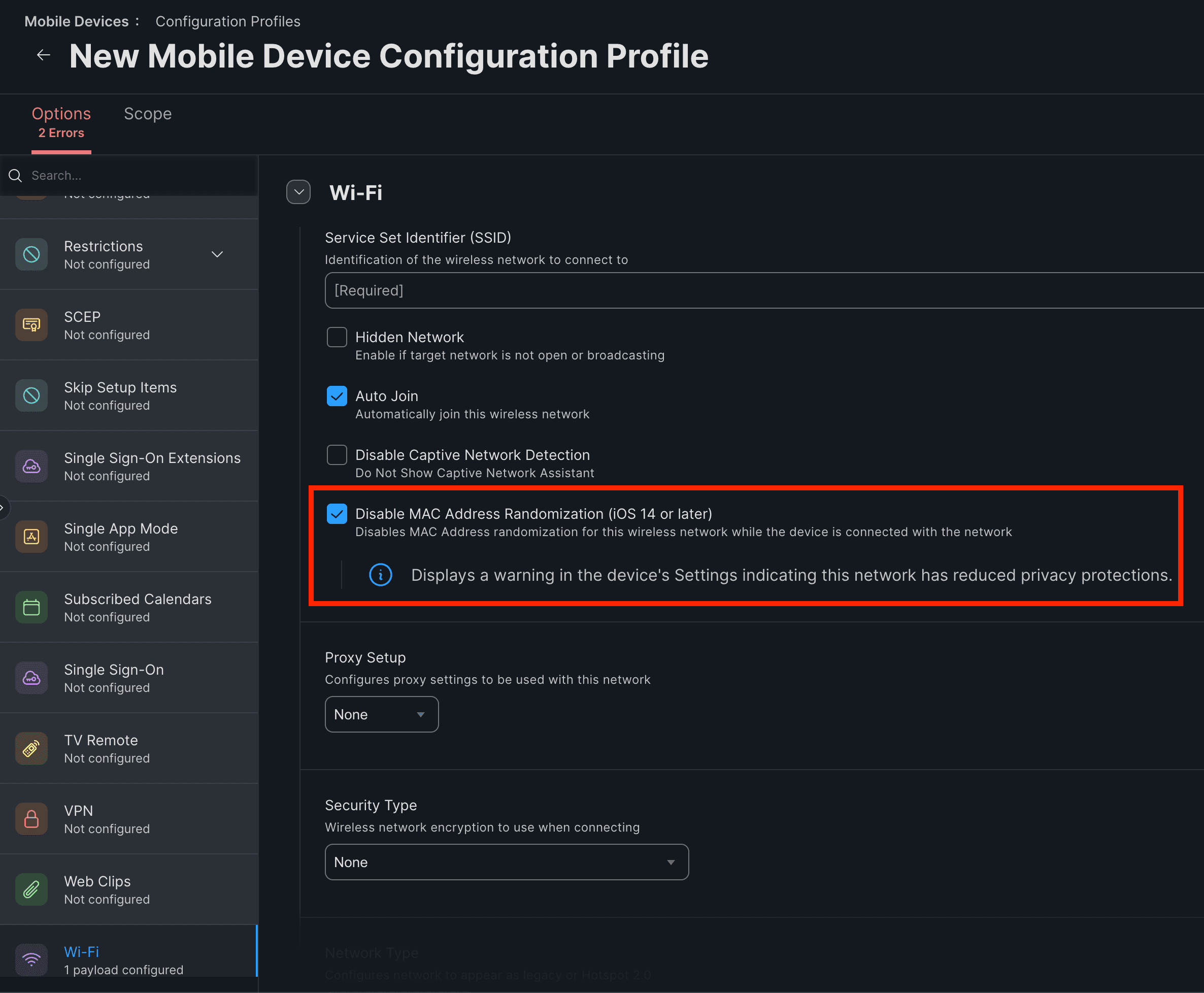
For WiFi Presence to work reliably with Jamf-managed devices, WiFi MAC address randomization must be disabled. If enabled, devices report different MAC addresses over time, making it impossible to match WiFi activity to MDM device records.
You can enforce this setting via MDM configuration profiles in Jamf:
- macOS: Create a Wi-Fi configuration profile and disable "Use random MAC address".
- iOS: Create a Wi-Fi configuration profile and disable "Private Wi-Fi Address".
Last updated on May 19, 2026, 3:50 PM